Super User
How do I place a bootable ISO on a USB drive?
This is a popular question with many similar or overlapping questions. Browsing the various linked and related questions I noticed the information on this subject is limited and fragmented. Most answers are simple software recommendations and do not touch upon any underlying issues. This article is meant to help fellow superusers appreciate the assumptions we take for granted and serve as a springboard for those that need to dig deeper to solve their problem.
Most people who are looking to place an ISO on a USB drive want to put any ISO on a USB drive and make the drive bootable (also known as making a live USB or installer USB from a binary image file). Examples include:
- Windows installer / Windows recovery
- Some other rescue media needed to restore a backup (e.g. Macrium reflect)
- Linux live image, possibly persistent
- A full OS install onto a USB
- does not include useless ISOs, e.g. non-data like those filled with music or video.
This is not necessarily the same as:
- putting an ISO on a bootable USB drive
- copying an ISO file or its filesystem contents onto a formatted USB drive
The problem we solve with today’s post is: “Given an ISO and a non-bootable USB drive, how do I create a bootable USB?”
What is an ISO anyway?
In the broadest sense it is a binary image (a.k.a. carbon copy, snapshot or raw data backup) of the storage sectors of a block-device such as a DVD, USB drive, micro-sd card or HDD. The ISO format has no standard (ironically), so there is no pre-defined header (if any), nor any restriction on what filesystems may be contained. These image files are not related to graphical/visual image files like JPEGs. But in common usage an ISO is expected to consist of a single standard filesystem, like the ISO 9660 filesystem. Here is another good definition (from MagicISO website):
Going by the more restrictive definition, an “ISO” is created by copying an entire disc, from sector 0 to the end, into a file. […] it isn’t possible to store anything but a single data track in this fashion. Audio tracks, mixed-mode discs, CD+G, multisession, and other fancy formats can’t be represented. [this specifically refers to discs with an ISO 9660 filesystem, as a convention]
In case you’re wondering about tracks, they’re basically partitions–so obviously a single filesystem can not have partitions. Of course an image can contain multiple tracks/partitions, but if we refer to such an image as an ISO we are using the loose definition (and probably making some developer angry). So an ISO can be any data image, but by convention we mean the entire user data* from an optical disk, which is commonly formatted with a single filesystem. So your ISO will probably conform to this more restrictive definition.
The name originated from CD images that commonly used ISO 9660 to store data. Nowadays most uses assume an ISO refers to an image from an optical disk like CD or DVD (even though in DVD the UDF filesystem is more common) . Even tools that can create an ISO from a HDD folder probably implicitly convert to an optical media filesystem like ISO 9660. For this reason it may be better for software to use a different extension like “.IMG” to denote non-optical image files.
*With CDs a raw sector is 2352 bytes, but only 2048 bytes are used for data in formatted storage. The rest is used for error correction related stuff. This is why you might see corrupted files if you extract a true raw image from a CD and try to mount it–files are injected with junk bits. DVDs don’t make this distinction, their sectors only have 2048 bytes of user data. So in the case of CDs with filesystems an ISO is normally not a true sector-by-sector carbon copy.
These days it’s not altogether uncommon to see messages about “making an ISO” of an audio CD, which makes no sense at all. (MagicISO FAQ)
Aha, a copy ‘sectors’ from a ‘block device’…
A block device is just jargon for storage media, or ‘drive’ if you like. From a programmer’s point of view storage is a one dimensional array (row/line) of bits. But at the hardware level you can’t address each bit individually. The smallest ‘word’ size for reading and writing is called the sector size. Filesystems are implemented to improve aspects like speed or security (e.g. we’d like for files to have names instead of a sector number like 0x0000008AF1). It has been a while since I attempted graphics:
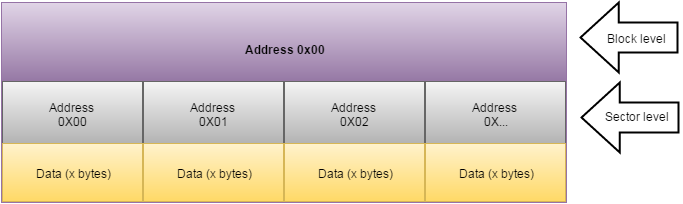
Figure 1 Block Device: The smallest addressable unit in a block device is called a sector. CDs and DVDs typically have a sector size of 2048 bytes. Filesystems (managed by the OS) may group multiple sectors into blocks. E.g. 4 sectors in the physical addressing space may constitute 1 block address in the logical (filesystem) addressing space–see image. The same data may occupy different sectors depending on the filesystem type. In the case of ISO 9660 a block is normally also 2048 bytes (but this value isn’t demanded by the standard).
So files occupy at least 1 sector. Images (ISOs in the loose definition) are created by copying all the bits in all the sectors. In case the data occupies less than the whole sector (e.g small files) the other bits are still copied instead of being zeroed out, because the filesystem may require them. On a sidenote, in my opinion file based images (like WIM used in Windows backups) do not fit the definition of “image”. But that is a discussion for another article.
The size of a sector depends on the hardware. Careful when burning an image your software does not make any wrong assumptions. For example copying every two original sectors into one new one might mess up the filesystem.
Beginning in late 2009, accelerating in 2010 and hitting mainstream in 2011, hard drive companies are migrating away from the legacy sector size of 512 bytes to a larger, more efficient sector size of 4096 bytes, generally referred to as 4K sectors, and now referred to as the Advanced Format by IDEMA (The International Disk Drive Equipment and Materials Association). (seagate)
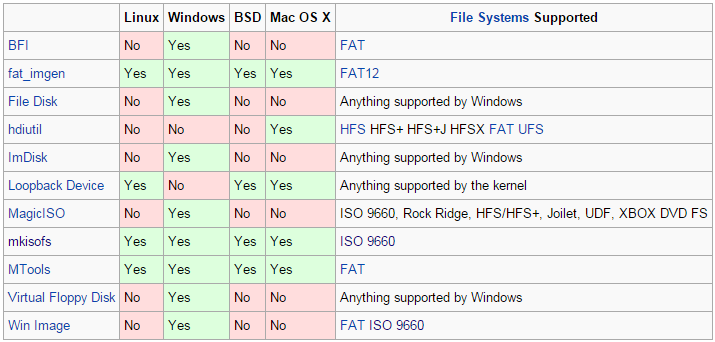
You can manage disk images with tools like these.
Tools that can create an ISO from optical media are common. Most disk burning software will also have this functionality. Though it seems much harder to find software that will make a true image of non-optical media (like a HDD or USB drive). Most backup software (Acronis, Paragon, Norton, etc.) will do this, but they may use proprietary formats and/or compression.
It is also possible to image individual partitions and even files on a hard drive. Mounting or file exploring software will need to recognize the filesystem before it becomes usable. Ok so, enough about images, how do we use some ISO with a flash drive?
*A sidenote for Windows users: If you want to quickly get an ISO from your DVD or explore the files of one, 7zip might be all you need. If you want to make an ISO from folders you’ll need to try something more advanced like imgburn–it lets you add/load a custom bootsector. Surprisingly few utilities support making ISOs from folders. Note that only adding a bootsector will not re-create the original ISO if hidden settings were lost.
Bootable vs Non-bootable
The question as it is now specifically refers to bootable ISOs as opposed to non-bootable ISOs. Is there such a distinction, and if so, what’s the difference? Well, bootable ISOs contain ‘invisible’ data called boot-sectors. Now this is where it gets messy because many people don’t know what kind of firmware they have (BIOS or UEFI) and it determines the bootcode requirements.
UEFI
UEFI systems don’t need this invisible data to boot, provided your files include .efi files in the right place on your USB drive. The drive should also be marked active and be formatted with the FAT32 filesystem. Simple. This is why some cases of copy and pasting the ISO contents just work, while others do the same steps and fail miserably on their BIOS systems. In certain cases the USB drive has an MBR instead of a GPT and the UEFI goes into BIOS mode without trying to look for the .efi files. To fix this bad behavior either change a setting in the UEFI or change the drive to a GPT type partitioning.
BIOS
So technically an ISO with efi files might be bootable, but I will reserve the term “bootable ISO” for those images with invisible boot files. For the BIOS case you will need this invisible data (i.e. a bootable ISO) unless your USB drive was previously formatted with compatible boot code, in which case you can just replace the visible filesystem contents from the ISO–copy paste. Additionally, in some rare cases the BIOS might be smart enough to boot without a sector like UEFI.
There are normally two sectors involved in loading the operating system, the MBR and the VBR. This implies a BIOS system can’t boot from a GPT style drive. To get this invisible data from your ISO to your USB you need to burn the image, not just copy the filesystem (visible) files. If you don’t know if your ISO is bootable, burn it and test it, or maybe check the first sector.
“ The location and size of the boot sector (perhaps corresponding to a logical disk sector) is specified by the design of the computing platform.”
— Wikipedia (Boot_sector)
So it’s a few Kb somewhere that the CPU loads to do the bootstrapping process. You can’t access this data with a file explorer, because it is not part of the filesystem proper. A good ISO image editor should let you modify all the bytes, possibly overwriting them with custom sub-images.
Now the basic theory is out of the way, perhaps a better question is: what about all those free tools that take an ISO and give back a bootable USB? I suppose some tools may add the invisible stuff for you if you have a non-bootable ISO. Or they might choose between MBR and GPT for you. Or you might be having trouble finding software you like that burns your ISO to your drive. They just make life a bit easier. But they might not consider all the variables I’ve mentioned.
The most important thing to remember is a USB drive can be made bootable independently of the data. The following general steps can be taken to create our live/installer USB:
- If you don’t know if your ISO is bootable, burn and test it. If that fails then wipe and:
- Make USB bootable by adding bootsector(s), formatting may wipe the drive. A common tool is bootsect.exe. This is needed for BIOS systems. This process (particularly the VBR) is often OS specific, but many non-windows solutions use GRUB or Syslinux (link). There are many tutorials on the web about how to install one of these bootsectors. But before you get stuck in, invest some more time into finding a working image file, most developers distribute them.
- Add compatible files (e.g. linux distro, windows installer, rescue program). You can just copy the files contained by the ISO to your USB drive. Depending on your target operating system your folder structure may need to be in a specific format. In some cases you are allowed to copy the whole ISO.
No-one wants to burn a DVD twice, even if they could. But once you have a bootable USB drive you can simply copy the data or folders to it. As long as your invisible boot-sector is valid for whatever you want to use you can just swap files. I believe Vista and up use compatible boot code for BIOS and UEFI. An alternative route is to modify the ISO directly and then burn it all at once.
Though we agreed to follow the ISO convention, ISO hybrids exist. They already contain the MBR code the flash drive needs while also keeping the 9660 filesystem intact. Rarely are USB-only images distributed (unfortunately).
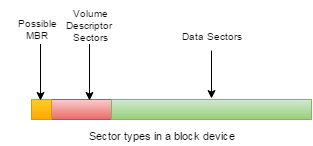
The above shows how a possible hybrid ISO can host both types of bootsector (optical and HDD). Only the green area is viewable to a typical user when mounting the partition.
There are many tools like the official Microsoft tool (probably uses bootsect), Rufus, YUMI (a.k.a pendrivelinux) and Unetbootin. I’m not sure how these programs do everything, but I believe most software will require a bootable ISO to generate the bootable USB sector. Perhaps they translate the boot volume descriptor (optical disk filesystem) into an MBR compatible with whatever filesystem they use to format the drive (probably FAT32, or maybe they leave it in 9660).
So what if you have a bootable ISO, but it has become unbootable?
Normally non-bootable ISOs are useless for the purposes of live/installer USBs (e.g. a DVD video ISO)–unless you somehow accidentally end up with a non-bootable ISO that should have been bootable.
For example, if you take a bootable DVD you can create an ISO from it both with or without the bootable property, depending on how you do it. In fact you can save any file or folder in ISO format, because there is no standard–it is just a filesystem snapshot. It is the settings used in the ISO creation process that determine if the produced ISO is bootable or not.
People often end up with non-bootable ISOs when they try to customize their ISO or create an ISO from a folder. The bootable property is lost when extracting an ISO and then repacking it without setting ‘make bootable’ options. Be sure to copy your bootsector.bin from the original ISO.
Now, let’s say you have a folder with files you want to turn into a bootable USB. You can either manually make the USB bootable, but this may be tricky for some images/systems. Or you can try and turn the folder into a bootable ISO, which you then supply to some one-click tool to create the live/installer USB (you’d need to find/create a bootsector first–and no guarantee it will work). Lastly there may be a niche tool that converts your customized folder directly to a working official ISO (like WAIK or RT se7en Lite for Windows images).
Note the lack of 2 options: there doesn’t seem to be software that accepts a folder directly, probably due to the lack of bootsector info, though it should work for modern UEFI systems. And there doesn’t seem to be a tool that can make a USB bootable for a given image distribution (i.e. just do step 2 in a few clicks). I’d be happy to hear information to the contrary!
Conclusion
Many one-click tools do require an ISO (preferably a bootable one) to generate a bootable USB. Just remember that an ISO may be more than just a file archive, and the underlying filesystems may vary. Get the right ISO and any burning software will copy all the sectors to your USB drive, it shouldn’t be hard. And don’t be worried if the extension is something like .img or .bin, in many cases an image is an image!
Filed under Backup & Restore, Filesystems